Vamps (Beta)
Beta · Cloud only: Vamps are a beta feature and are currently available only in CuePlayer Cloud. Open a song in your Cloud library to use them.
A Vamp repeats a passage inside a phrase until you choose to leave it. Use one to rehearse an entrance or keep a musical passage going while waiting for a cue.
Return Point, Trigger, And Phrase Looping
A Vamp has a return point and a trigger. When playback enters the passage between them, Vamp mode becomes active. Each time playback reaches the trigger, it jumps back to the return point.
Jump back is the distance in seconds from the trigger to the return point. For example, a trigger at 22.0 seconds with Jump back set to 6.0 seconds repeats the passage from 16.0 to 22.0 seconds.
The backward arrow above the waveform shows this passage. You can have several Vamps in one phrase, but their passages must not overlap. Both endpoints must stay inside the phrase, even when a Vamp is disabled. Use times in steps of 0.1 seconds and a positive jump distance.
The phrase loop control repeats the whole selected phrase. A Vamp repeats its own smaller passage; turning phrase looping off does not disable Vamps.
Create A Vamp
- Open a song in CuePlayer Cloud and select or adjust your phrase.
- Pause playback.
- Press and hold the waveform at the point where playback should jump back. Hold for about half a second, without dragging. This position becomes the trigger.
- In Create Vamp, set Jump back to the number of seconds to repeat. The initial value is
1second. - Select Save Vamp. A backward arrow appears above the waveform.
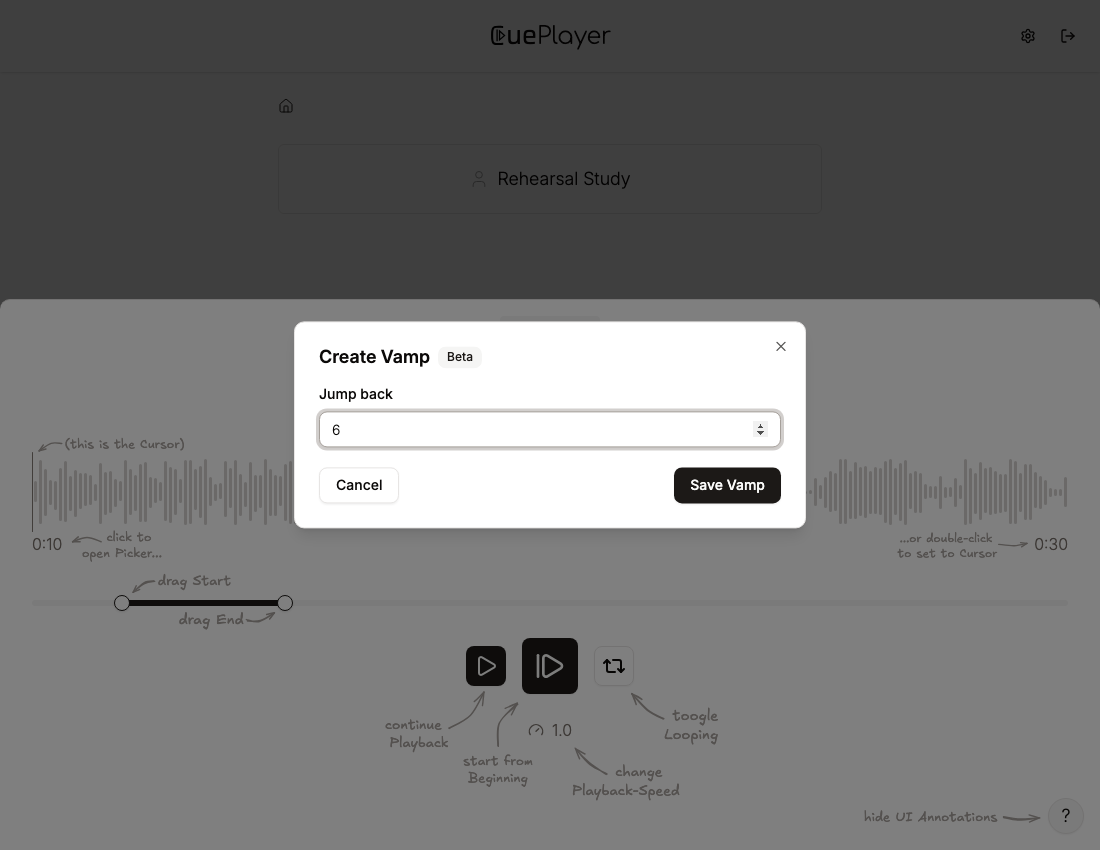
Save Vamp updates the markers currently in the player. To keep them for a later session, also save them with a phrase.
Edit, Disable, Or Delete A Vamp
Double-click or double-tap the Vamp passage in the waveform to open Edit Vamp.
- Trigger changes the jump point, in seconds from the beginning of the song.
- Jump back changes the passage length in seconds.
- Enabled lets you disable this Vamp without deleting it.
Select Save Vamp to apply the changes to the current marker set. If a passage crosses the phrase boundaries or overlaps another Vamp, correct the values before saving.
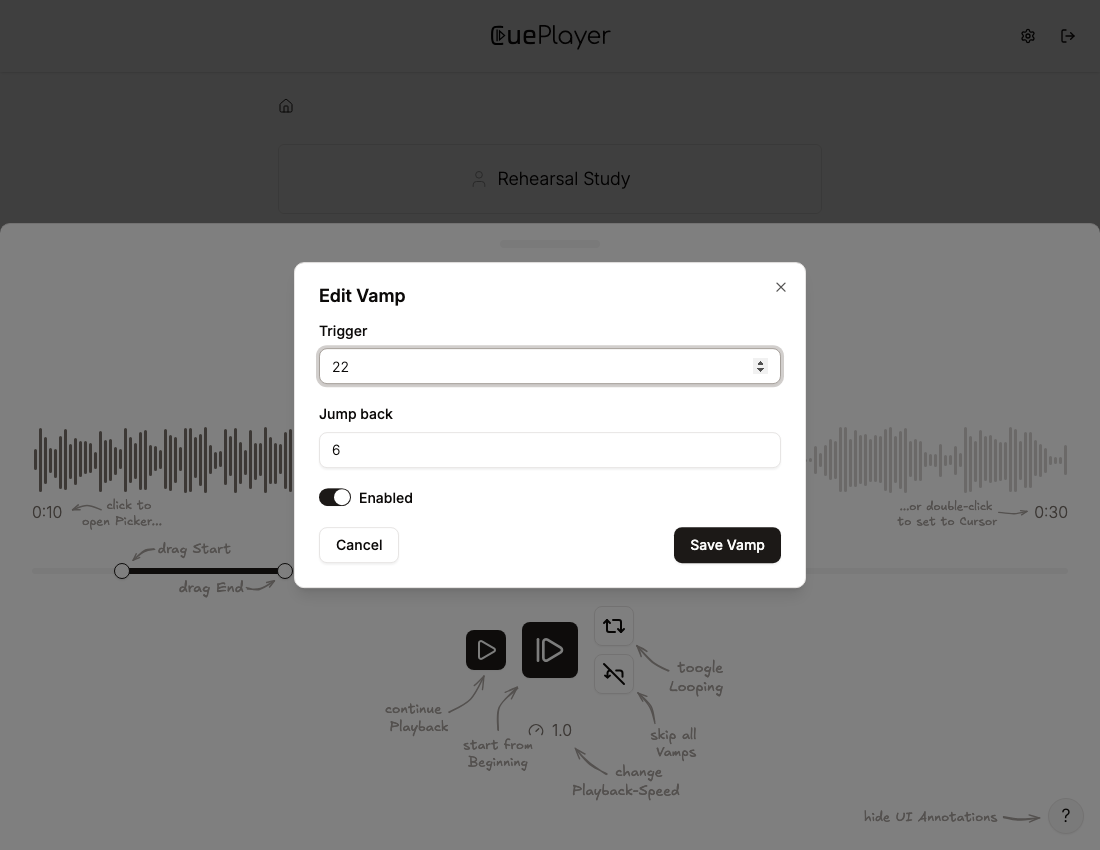
To delete a Vamp, pause playback, then press and hold its passage in the waveform. Confirm Delete Vamp. Synchronize the resulting marker set with the saved phrase if you want the deletion to persist.
Play And Leave A Vamp
Start from the phrase beginning, or continue from the current cursor. When playback enters an enabled Vamp passage, the player highlights it and the large center button becomes Leave Vamp.
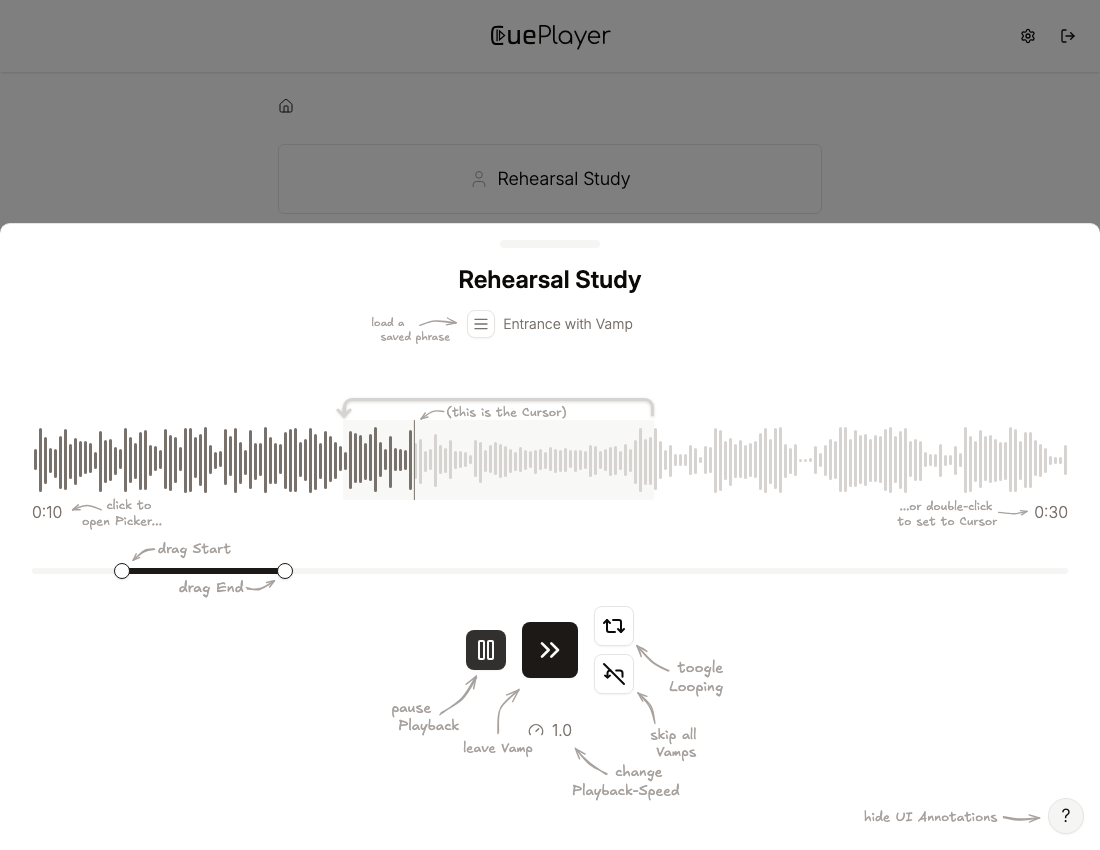
Select Leave Vamp when you are ready to continue. Playback keeps moving from its current position and normally passes the trigger without jumping back. Leaving does not disable or delete the Vamp. Deliberately seeking into its passage can activate it again.
Current beta limitation: If a Vamp trigger is exactly at the phrase end, playback can jump back again after Leave Vamp. Use marker bypass to prevent that return, or place the trigger before the phrase end.
To pause while a Vamp is active, use the smaller pause button to the left of the center button. Pausing exits visible Vamp mode. Continuing from an eligible position inside the passage can enter it again.
Temporarily Bypass Vamps
The marker bypass toggle sits below the phrase-loop toggle when the player has an enabled Vamp. Turn it on to leave any active Vamp and play past all Vamps in the current marker set.
Bypass is a temporary player setting. It keeps the Vamps and their individual Enabled settings intact. Turn it off to use them again; if playback is inside an enabled Vamp passage, it can become active immediately.
Save Vamps With A Phrase
Vamps belong to a saved Cloud phrase. Creating or editing a Vamp changes the current marker set in the player; it does not automatically update the saved phrase.
Save A New Phrase
- Open the phrase list above the player.
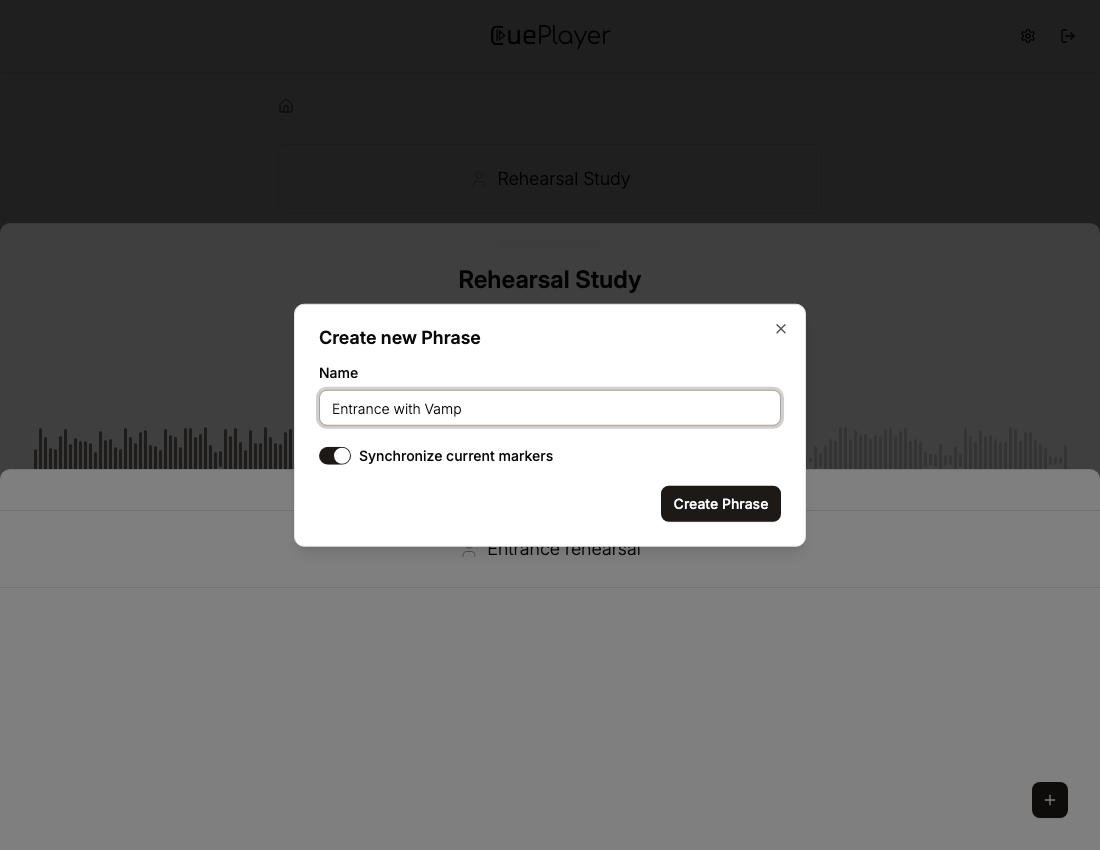
- Select Create Phrase (the plus button when phrases already exist).
- Enter a name.
- Keep Synchronize current markers switched on. It is selected by default when the player has markers.
- Select Create Phrase to save the phrase and its Vamps together.
Update An Existing Phrase
- Open the phrase list and double-click the phrase you want to update.
- Switch on Synchronize current markers. For an existing phrase, it starts switched off.
- If you also changed the phrase boundaries, select Overwrite timestamps to current phrase. All Vamps must fit inside the resulting phrase.
- Save the updated phrase.
Synchronization replaces that phrase’s saved markers with the current marker set. This includes edits, enabled states, and deletions. Leaving synchronization off preserves the phrase’s previously saved markers. Loading a saved phrase restores its saved marker set.
When switching phrases or closing the player, CuePlayer can offer Synchronize markers, Discard markers, or Cancel for unsaved marker changes. This prompt applies when the current phrase boundaries still match the loaded saved phrase. If you changed the boundaries or have not saved a phrase yet, save explicitly using the steps above.